
Build Characters
Click on this tile in the Character List window or select Build Characters under the Characters menu to open the Build Characters window.
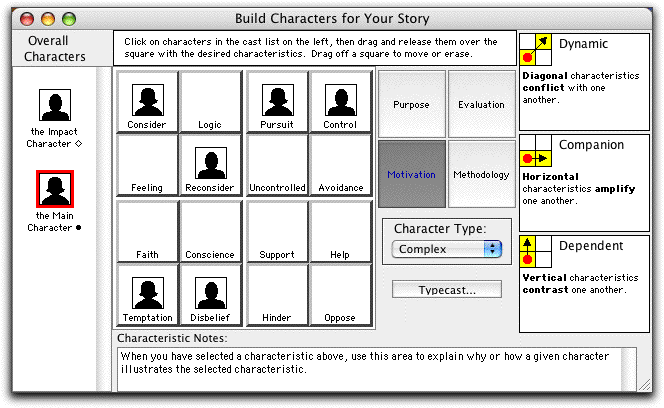
Build Characters Window
In this window you can begin to develop your characters and their relationships with each other. Do this by deciding what is driving them in your story. The Character Element Grid of items in the center represents all of the possible characteristics (or elements) for your story.
Assign Characteristics
Assign a characteristic to a Character by:
Clicking on a character icon in the left window and dragging it over the Character Element Grid in the center.
Once the icon is over a characteristic, text in the Definition Window above the grid changes to a context-sensitive description of the Character with the associated characteristic.
Drop the icon onto a characteristic by releasing the mouse button.
Any character icon already assigned this particular characteristic is replaced by the one you dragged and dropped.
Remove Characteristics
Remove a characteristic from a Character by:
Clicking on the character’s icon on the Character Element Grid and dragging it off the grid to another part of the window.
Release the mouse button and the characteristic is removed.
Characteristic Notes
At the bottom of the Build Characters window is the Characteristic Notes window. Use this text box to illustrate how a character fits the Characteristic you’ve assigned to him or her.
The Characteristic Note stays with the Characteristic, not the character. If you remove a character icon from a particular Characteristic, you need to also remove the Characteristic Note by deleting its text.
Character Dimensions
The relative position of two characters’ icons in the grid tells you something about the relationship the characters have in your story:
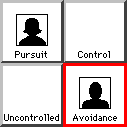
Characters diagonally opposed to each other have the greatest conflict.
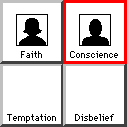
Characters next to one another have the most indirect impact on each other.
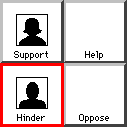
Characters above and below each other form positive or negative dependencies.
Only one character icon can be assigned to each characteristic.
Character Type
To identify a character as a particular Archetype, first select the character’s icon by single- clicking on it in the Character List window at left. Then select the appropriate Archetypal designation (Protagonist, Reason, Skeptic, etc.) from the Character Type pop-up menu.
To call up a character’s Character Info window, double-click on that character’s icon in the Character List at left.
Typecast
To give a Character a set of Characteristics associated with a certain character stereotype:
Select a Character icon in the Character List window by double-clicking on it.
Click on the Typecast button. A Typecast Dramatica Character dialog box displays.
In the Look in: pop-up menu, open the Character Examples folder.
Assign the stereotype (Bully, Charmer, Coward, etc.) of your choice by double-clicking on it.
If the characteristics of the Stereotype conflict with other choices you’ve already made, you are prompted to replace your other choices. Characteristic Notes are also transferred, and either add to or replace the existing Notes, depending on your Character Options settings (see Characteristic Notes.)